Obelink: marketplace guide
About this guide
This is a ChannelEngine guide on the Netherlands-based marketplace Obelink. Here you can find information on how to request an Obelink account, how to configure this marketplace on ChannelEngine, and what the specific requirements are.
Table of contents
Marketplace-specific requirements and exceptions
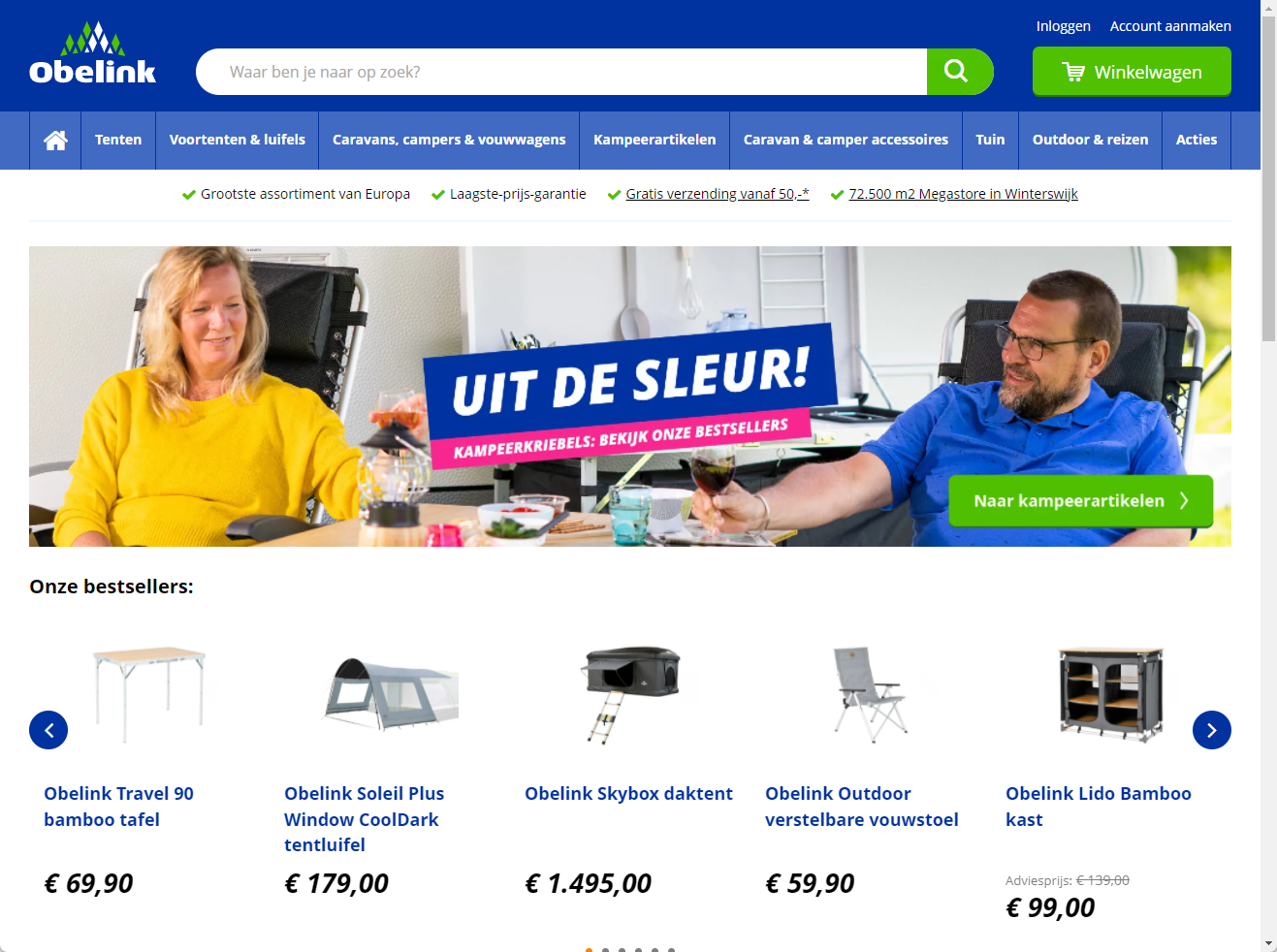
Commercial information
| Founded | 1959 |
| Founder | Jan Obelink |
| Headquarters | Winterswijk, the Netherlands |
| Area served (orders) | Belgium, France, Germany, Netherlands |
| Revenue | USD 9.5M (2018) |
| Number of monthly visits | around 500,000 |
| Website | obelink.nl |
| Setup cost | none |
| Commission | 15% |
| Other costs | monthly fee of EUR 39.95 (the first six months are free) |
| Payment | 1th, 11th, 21th |
| Product categories | Camping & outdoor, pets, shoes/bags/luggage, sports. DIY/gardening |
| Input language | Dutch, French, German |
| Input currency | EUR |
| Content creation | yes |
| Minimum number of SKUs | no |
| Advertisement options | no |
| Profile on ChannelEngine | Obelink |
How to request an account
To start selling on Obelink, you can contact Obelink directly or go to the partner portal and fill in the form.
Associated costs
Selling on Obelink comes with the following costs:
- Monthly fee - Obelink charges a monthly fee of EUR 39.95. The first six months are free of charge.
- Commission - Obelink charges a 15% commission on each sale.
Marketplace features
| Supported | Not supported |
| Product offers | Returns (marketplace) |
| Product content | Marketplace fulfillment service |
| Orders | Repricing |
| Returns (merchant) | Cancelations (marketplace) |
| Shipments | Automatic relationships |
| Carrier mapping | Multiple stock locations |
| HTML formatting | Product variations (manual) |
| Sales channels* | Bundles |
| Cancelations (merchant) | Refurbished products |
| Invoice uploads | |
| Settlements | |
| Product variations (manual) |
* A marketplace that supports sales channels allows merchants to list and sell products across multiple markets (e.g.: countries, regions, and states), all from the same connection.
Settings and configuration
Setting up each channel on ChannelEngine follows the same flow, though not every channel includes the steps listed below.
- Go through the Setup.
- Create a Product selection.
- Complete the Categorization.
- Set up the Mappings: content, offers, and carriers.
- Configure the Pricing: rules and currency conversion.
- Fill in the Stock settings.
- Finish the Activation.
- Check the Listed products overview.
Marketplace-specific requirements and exceptions
Setup
On ChannelEngine
Connection
This channel is a Mirakl-based channel. Therefore, you connect to it with your Mirakl Connect SSO account. For more information on configuring Mirakl Connect SSO with ChannelEngine, check out the Mirakl-based channels: SSO authorization article.
Invoice uploads
To configure your invoice settings, go to Advanced settings. Then, select one option from the dropdown menu in the Enable invoice uploading field, which contains the following options:
- ChannelEngine invoices - when ChannelEngine receives a shipment, ChannelEngine automatically generates an invoice and attaches it to the shipment before exporting the shipment.
- Merchant invoices (optional) - when ChannelEngine receives a shipment, ChannelEngine exports the shipment – even if there is no invoice attached to it.
- Merchant invoices (required) - when ChannelEngine receives a shipment, ChannelEngine only exports the shipment if an invoice is attached to it. If not, you receive a notification.
- None - when ChannelEngine receives a shipment, ChannelEngine takes no action other than notifying you that no invoice is present.
If you select one of the Merchant invoices options, make sure to upload the invoice to ChannelEngine via the Merchant API or via the web interface. To learn more, check out the article ChannelEngine: upload merchant invoices.
Categorization
Categorization on Obelink is straightforward, and the categories are listed in Dutch.
Mappings
Content
All products (required)
- Artikelnummer fabrikant (Supplier item number) - the manufacturer's internal identifier. Usually, this is your Vendor product number on ChannelEngine.
- Barcode (EAN/UPC)- the 13-digit EAN or UPC of the product.
-
Hoofdafbeelding (Main product image) - the product's main image. The following requirements apply:
- Images must have a resolution of 1,200x900 px, 72 dpi format.
- There must be white space around images, with a minimum of 30 px on all sides.
- The preferred formats are .png, .webp, and .jpg.
- Merk (Brand) - the brand/manufacturer of the product.
-
Omschrijving [country] (Description)- the full description of your product. Obelink supports the use of the HTML tags hard return <br> and bold <b>bold text</b>.
Obelink (see Obelink Marktplaats Handleiding) advises you to structure the product description as follows:- Paragraph 1 - the brand and the product name with accompanying text on what it is in 2/3 sentences.
- Paragraph 2 (emotions)- start with the user scenario (e.g.: for whom? Why do you need it?), then describe the problem, the consequence, and the solution.
- Paragraph 3 (facts) - what makes the product unique? Compare it to other products or explain the most important properties in more detail. Radiate a specialist and use power words such as: recommended by, especially recommended, our advice, our tip, advised, certified, proven, tested, warranty, approved.
- Summary - 3-4 advantages and 1 disadvantage of the product.
-
Product naam [country] (Product name)- the product’s title. It must be structured as [Brand] + [Product name] + [Keyword] (i.e.: type of product) – with a maximum of 60 characters. Do not add other specifications to the title. Every product must be named differently, but attributes can have the same name. Also, note that the product title must be added per country, even if you are not actively selling it in that country.
Correct:
Obelink Eiger 3 KoepeltentIncorrect:
Obelink Eiger 3 personen Polyester Koepeltent 350x250x120cm - Shop SKU - your internal variant identifier. Usually, your Merchant product number on ChannelEngine. E.g.: ABC123-Yellow-Medium.
The following required attribute is common to all Mirakl-based marketplaces:
-
Export strategy - choose a strategy for exporting product data. Select from:
- Yes - export all product content to the marketplace, including the EAN (GTIN), category, and other mapped attributes. This option is ideal if you manage both product content and offers on ChannelEngine for the marketplace. Ensure that you map all required attributes.
- No - do not export product content to the marketplace. Choose this option to keep product content excluded from exports and only export the offers. This option is ideal if you do not want to export the product content yet, or you want to export only the product offers because the product content already exists on the marketplace.
All products (optional)
- Afbeelding 2-6 (image 2-6) - the product’s additional images. The following requirements apply:
- Omschrijving [country] - this attribute becomes mandatory if you want to list the product in related markets.
- Variant group code - used to create variants, aka parent-child relationships, on Obelink. E.g.: a tent with different colors and/or different sizes. The following requirements apply.
Offer
Required
- Price - the sale price of the product.
Optional
Because Obelink uses sales channels, there are optional attributes available that contain the country code: Belgium = "Obelink_be", Germany = "Webshop_DE", and Netherlands = "INIT"
- Discount start date [INIT, Obelink_be, or Webshop_DE]
- Discount end date [INIT, Obelink_be, or Webshop_DE]
- Discount price [INIT, Obelink_be, or Webshop_DE]
- Discount quantity threshold [INIT, Obelink_be, or Webshop_DE]
-
Price [INIT, Obelink_be, or Webshop_DE]
The following offer attributes are common to some Mirakl-based marketplaces:
- ECO #1-5 amount - the amount due for the eco-contribution related to the product. E.g.: 2.50.
- ECO #1-5 EPR category code - the extended producer responsibility (EPR) code that applies to the product. For a list of category codes, check out the article Providing data to comply with circular economy regulations in Mirakl's help center (note that you need to be logged in to Mirakl to access this page). E.g.: DE-WEEE, FR-DEA, etc.
- ECO #1-5 producer ID - your producer ID, received upon registering with a packaging register, such as Germany's LUCID. The maximum number of characters is 255.
- Category-specific ECO attributes - depending on your sales country, you might be required to map additional ECO attributes for products in specific categories. Review which ECO attributes to map within each category.
If pricing v2 is activated in your environment, you will see the following offer attributes, which are common to all Mirakl-based marketplaces:
- Allow promotion below min price - set to true to allow the promotion price to drop below your product's minimum price. To learn more, check out the article ChannelEngine: promotions.
- Strike price - the regular selling price. Only map this if you set up a discount. For guidance, check out the Working with discounts section of this article.
- Map your current selling price in Price in Pricing, Price rules.
- Additionally, the Fee groups attribute appears in Mappings, Fee group mappings, if pricing v2 is activated. Map the marketplace fee group ID of the product there.
The following offer attributes are also common to all Mirakl-based marketplaces:
- Available start date - the date from which the product becomes available for sale on the marketplace. The date format is YYYY-MM-DD HH:MM:SS ZZ.
- Available end date - the date from which the product is no longer available for sale on the marketplace. The date format is YYYY-MM-DD HH:MM:SS ZZ.
- Discount start date - the date from which the product's sale price is valid, if applicable. Input the date as a fixed value. The date format is YYYY-MM-DD HH:MM:SS ZZ. All dates follow ISO month-day formatting, and all times follow 24-hour formatting in the UTC timezone. E.g.: 2026-10-25 15:30:00 +01 will start your discount on 25 October 2026 at 3:30 PM, one hour ahead of UTC time.
- Discount end date - the date until which the product's sale price is valid, if applicable. Input the date as a fixed value. The date format is YYYY-MM-DD HH:MM:SS ZZ. All dates follow ISO month-day formatting, and all times follow 24-hour formatting in the UTC timezone. E.g.: 2026-10-30 23:59:59 +01 will end your discount on 30 October 2026 at 11:59 PM and 59 seconds, one hour ahead of UTC time.
- Discount price - (appears only if you use pricing v1) the product's sale price, if applicable. This attribute must have a lower value than the Price attribute.
- Discount quantity threshold - the minimum quantity required for the discount rate to become available.
- Leadtime to shipment - the number of days before you ship the product. You can create your own unique rules, if applicable. For more information on this, check out the article Lead time to ship in Mirakl's help center.
- Minimum quantity alert - map this attribute to receive a notification from Mirakl if your stock drops below the threshold defined.
- Offer state - the product's condition. Find your option from the dropdown menu by selecting the fixed value to apply to all.
- Product tax code - the taxation code applicable to the product.
- Logistic class - your optional shipping class. Make sure to map the shipping class using the marketplace’s codes and not with the labels that are visible in the partner portal's user interface. These codes vary per marketplace. If this marketplace makes use of logistic class codes, they can be found below.
Logistic class codes
| Code | Label | Description |
| SP | Small parcel | Max weight 3 kg; max length 50 cm and a max circumference (2xw + 2xh + 1xl) of 111 cm |
| NP | Normal parcel |
Max weight 31,5 kg; max lenght 175 cm and a max circumference (2xw +2xh +1xl) of 300 cm |
| NSP | Non standard parcel |
"Parcel has longer length or diagonal than 130 cm; and/or weight >35 kg; and/or parcel unstable, irregular shape (sphere, cylinder, roll)" |
Carrier
Carrier
Carrier mapping is not required on Mirakl-based marketplaces. However, with carrier mapping, you can map your carrier to a specific list of carriers maintained by this marketplace. Carrier mapping enables ChannelEngine to automatically send the tracking codes to this marketplace, allowing buyers to eventually track the shipment themselves. If your carrier is missing from the list, please directly contact the marketplace.
Pricing
Refer to the article Mirakl-based marketplaces: configuring discount prices to learn more about setting up discounts per sales channel.
Listed products
If you have problems with products not appearing on Mirakl-based marketplaces – especially if you are trying to create products, check the Listed products page for more information. Use the Channel status filter or the Validation and feedback tab to view all known errors for specific products.
If you see either of the below statuses, refer to the article ChannelEngine: why is my product listed as 'Product not found' in the inventory report?:
- Product not found in inventory report
- Product not in offer file
Products that ChannelEngine has failed to export are shown as Invalid, e.g.: products with an empty GTIN or that do not yet exist on the marketplace.
Alternatively, download the error report generated by Mirakl. To do so:
- Log onto the Mirakl platform and go to Catalog, Product imports.
- Identify the latest report and click the See details button.
- Download the CSV file Non-integrated products report.
FAQs
How often does each task run on Mirakl-based marketplaces?
By default, Mirakl-based channels follow the schedule below:
| Task | Frequency |
|---|---|
| Export product data to channel | every 60 minutes |
| Export product offers to channel | every 15 minutes |
| Import product offers from channel | every 15 minutes |
| Import orders from channel | every 15 minutes |
| Export order shipments to channel | every 15 minutes |
| Export returns to channel | every 30 minutes |
Can I map attributes on ChannelEngine and on the Mirakl platform?
No. Mapping attributes on the Mirakl marketplace platform interferes with ChannelEngine's content export. Therefore, it is recommended to categorize and map content only on ChannelEngine.
Why am I not receiving feedback on my content and/or offer exports?
Some Mirakl-based marketplaces manually review content and/or offers before products can go live. Because of this, feedback reports may take a few hours or several days to become available.
Offer feedback - error reports are mostly generated automatically and are imported quickly.
Content feedback
- Transformation error report - automatically generated and usually imported within a maximum of one day.
- Conventional error report - requires a manual review by the Mirakl-based marketplace, and not all do so. It can take several days for this report to be imported.
Note that the previous feedback report is not removed from ChannelEngine until both the latest transformation and the conventional reports have been fully processed by ChannelEngine. If there are no errors to report, no new reports are generated.
Comments
0 comments
Article is closed for comments.