Reverb: marketplace guide
About this guide
This is a ChannelEngine guide on the Chicago-based marketplace Reverb. Here you can find information on how to request a Reverb account, how to configure this marketplace on ChannelEngine, and what the specific requirements are.
Table of contents
Marketplace-specific requirements and exceptions
Commercial information
| Founded | 2013 |
| Founder | David S. Kalt |
| Headquarters | Chicago, Illinois, United States |
| Area served (orders) | Austria, Belgium, Canada, Finland, France, Germany, Ireland, Italy, Netherlands, Portugal, Spain, United Kingdom, United States |
| Revenue | USD 35 million |
| Number of monthly visits | circa 16 million |
| Website | reverb.com |
| Setup cost | none |
| Commission | see Associated costs section |
| Other costs | see Associated costs section |
| Payment | see the How long does it take to get paid? article on Reverb's website |
| Product categories | musical instruments |
| Input language | English |
| Input currency | USD by default; configurable |
| Content creation | yes |
| Minimum number of SKUs | no |
| Advertisement options | yes |
How to request an account
To start selling on Reverb, click Start selling on its Seller Hub, and create your merchant account.
Sellers must meet the following tax requirements:
- Submit a valid sales tax/VAT ID
- Set up policies to collect sales tax/VAT from buyers in relevant countries
To sell on any US-based marketplace, the following seller requirements apply to you in general:
- US Taxpayer Identification Number (TIN)
- US-based warehouse
- Ability to process returns
- Customer service available by email, at a minimum
Associated costs
It is free to list an unlimited number of products on Reverb, and there are no setup fees for new merchants. However, Reverb applies a 5% selling fee on each item sold, along with a payment processing fee of 3.19% – plus USD 0.49 per transaction.
Additionally, if you engage in cross-border shipping (especially for international sales), there might be additional fees to consider. These fees are associated with the complexities of shipping products across borders.
Marketplace features
| Supported | Not supported |
|---|---|
| Product offers | HTML formatting |
| Product content | Marketplace fulfillment service |
| Orders | Multiple stock locations |
| Cancelations (merchant) | Split orders/order lines |
| Cancelations (marketplace) | Returns (merchant) |
| Returns (marketplace) | Refurbished products |
| Shipments | Sales channels |
| Carrier mapping | Repricing |
| Settlements | Pick-up point delivery |
| Product variations |
Settings and configuration
Setting up each channel on ChannelEngine follows the same flow, though not every channel includes the steps listed below.
- Go through the Setup.
- Create a Product selection.
- Complete the Categorization.
- Set up the Mappings: content, offers, and carriers.
- Configure the Pricing: rules and currency conversion.
- Fill in the Stock settings.
- Finish the Activation.
- Check the Listed products overview.
Marketplace-specific requirements and exceptions
Setup
On Reverb
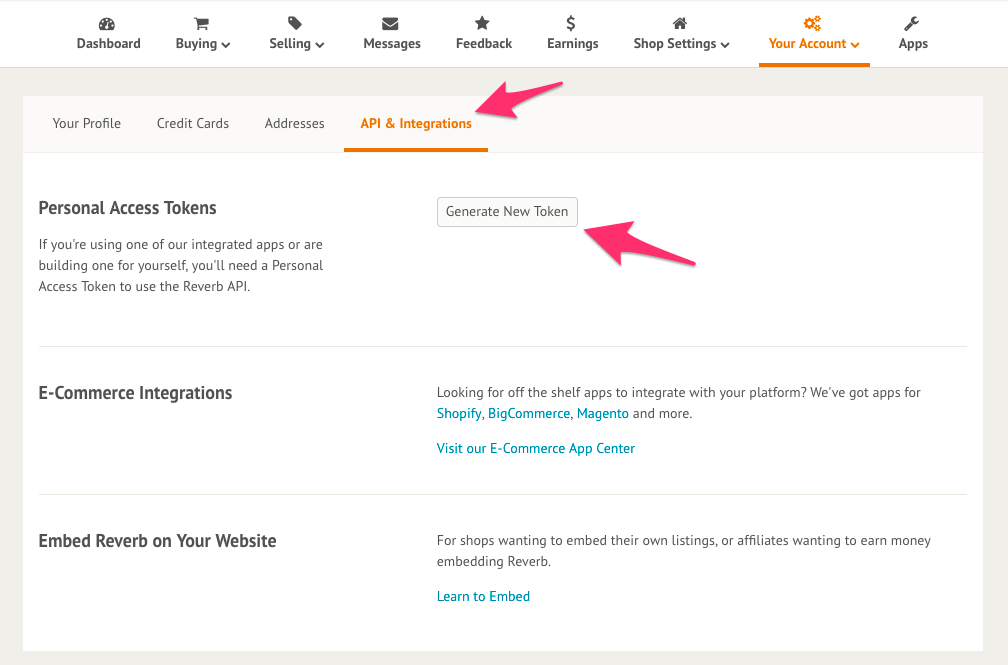
To retrieve the required API access token:
- Log in to the Reverb back-end. From the user menu, click My profile, API & integrations.
- Click Generate new token and enter a name for the connection. E.g.: ChannelEngine.
- Select all of the available scopes to allow ChannelEngine the correct access levels, then click Generate token.
- Once created, your token appears in the Personal access tokens section.
On ChannelEngine
In Setup, Connection, add your API token to the API access token field. API tokens for Reverb do not expire; you do not need to refresh the token at a later date.
In Plugin-specific settings, go through the following options:
- Send buyer notification after shipment export - this option is enabled by default, and automatically sends notification emails to your buyers as soon as a Reverb shipment is confirmed on ChannelEngine.
- Currency - if you are a non-US merchant, enter the currency code you want ChannelEngine to use to export product offers into this field. For US-based merchants, USD is automatically pre-selected as your store currency and cannot be changed. A list of supported currency codes can be found on the What currencies can I use? page in Reverb's help center. This value should exactly match the currency code you have configured in the Reverb back-end via Shop policies, Shop currency. E.g.: if your Reverb shop currency is EUR, enter EUR into the Currency field on ChannelEngine. If no value is entered, the default currency (USD) is used.
In Advanced settings:
- Exclude shipping cost from refund - decide if the shipping cost is included in the refund amount of your merchant returns. For guidance, check out the section Returns below.
Categorization
Categorization on Reverb is straightforward. All categories are listed in English, and there are no category-specific attributes.
Mappings
If you are new to Reverb, it is recommended that you configure your store policy and shipping profiles on Reverb before completing content mappings.
Content
All products (required)
- Brand - the product's brand. E.g.: Fender.
- Description - the long description of the product, listing key selling points and features. Should include any additional information relevant to the buyer, such as ownership and modification history, playability specifications, cosmetic condition, and anything included in the purchase. E.g.: power supplies, accessories, etc. May not include links or references to other selling venues, external listings, websites, or selling channels. Also, do not include advertisement banners or store policies in the description.
-
Image 1 URL - the main product image. Images can be updated, replaced, re-ordered (in the case of multiple images), and deleted at any time. The image requirements are:
- Resolution - at least 620x620 px, but higher resolutions are recommended.
- Shape - square.
- File format - all formats are accepted.
- Use original photos for pre-owned items.
- Screenshots, stock photos (unless a registered seller), and photos from other websites are not allowed.
- Model - the product's manufacturer model number or model name. E.g.: 9190117506, TS808 Tube Screamer, etc.
-
Shipping profile - refers to the predefined shipping profiles that you can configure in the Reverb back-end via your seller profile. Shipping profiles allow you to assign specific rates to a category or range of products. This is a free input text field that you can use to enter the name of the shipping profile you want to map to a product. This value should match the exact name of the profile on Reverb – it is therefore advised that you copy and paste shipping profile names from Reverb to ChannelEngine to avoid potential mismatches. E.g.: 'Free - standard shipping', '$15 - standard shipping', etc. More information on how to create shipping profiles can be found in the article What are shipping profiles? in Reverb's help center.
NB: it is not possible to create or modify shipping profiles via ChannelEngine's Merchant API. Creating and managing shipping profiles can only be done via your Seller profile on Reverb. You can only map shipping profiles to listings when the profiles have first been created on Reverb. - Title - the product name, model, and size – if applicable. E.g.: Fender Baja Blue T-Shirt - Large.
All products (optional)
- Export content - determine the export content strategy for existing products on Reverb. If set to No, only the product's description gets exported. If set to Yes, the entire product content is updated during export.
- Finish - the product's finish, in terms of color or material. Reverb uses an algorithm that automatically matches the values you map to finish with a similar value from their own database. The finish is also shown in product titles to improve discoverability. E.g.: Cherry, Oak, etc.
- Handmade - indicate whether the product is handmade. E.g.: true, false.
- Image 2-8 URL - additional image URLs. See the image requirements listed for Image 1.
- Video link - a URL pointing to a product video on YouTube.
- Year - the year(s) during which the product or model was manufactured. This is a flexible attribute that supports year ranges and/or exact years. E.g.: 1979-1981, 1971, mid-80s.
Offer
Reverb supports offer matching based on a combination of the product's GTIN, SKU, and UPS (wattage). If a match is found, the item Price is automatically updated. You must first complete product categorization and all required content mappings before ChannelEngine can match offers.
Required
- Condition - indicate the product's condition by selecting from a range of fixed values. E.g.: brand new, excellent, fair, good, mint, non-functioning, poor, and very good.
- Price - the price of the product in the currency selected during setup. This can include or exclude sales tax, based on your Reverb store's settings. Using more than two decimals is not recommended, as Reverb may interpret it as thousands – even if the decimals are separated by a dot.
Optional
- Pre-order lead time - the amount of time required to ship the pre-ordered product (e.g.: 2). If this attribute is mapped, Pre-order ship date cannot be mapped.
- Pre-order lead time unit - the unit of time that applies to the value mapped to the Pre-order lead time attribute. E.g.: days.
- Pre-order ship date - the date when the pre-ordered product can be shipped (e.g.: 2030-12-31). If this attribute is mapped, Pre-order lead time cannot be mapped.
In Mappings, Offer mappings, the following offer attribute may appear on this channel, if this channel uses pricing v2:
- Allow promotion below min price - set it to ‘true’ to allow the promotion price to drop below your product's minimum price.
In Mappings, Fee group mappings, map the marketplace fee group ID of the product.
In all cases, map your selling price in the Pricing step, in Price rules.
Carrier
Carrier mapping is not mandatory on Reverb, but it is recommended.
Pricing
Listings must have a minimum price of USD 1.50. Listings beneath this price cannot be published. Reverb applies sales tax on product sales based on location. More information on how sales tax is handled can be found in the article Sales tax rules in the Reverb help center.
Additional information
Orders
ChannelEngine imports orders and reserves the stock when they have the status Awaiting payment and Awaiting shipment. In the majority of cases, only paid orders are imported – as buyers cannot place an order without first completing payment.
Additionally, there is no support for split orders, back orders, or split order lines via Reverb due to the way quantities of the same product are handled on orders.
Shipments
It is required to send a tracking code with the shipment. Reverb does not release payments to merchants for orders without a tracking code, unless the buyer confirms that the order is received via the Reverb UI.
Reverb does not support separate shipping and invoice addresses; therefore, ChannelEngine uses the buyer's shipping address as the invoice address on orders.
Cancelations
Buyers cannot place an order without first paying for the product on Reverb; therefore, there is no cancelation process in place for orders pending payment. Buyers must contact a merchant directly via the marketplace to request a cancelation, in which case the merchant can create the cancelation on the buyer's behalf.
Merchant cancelations are handled by ChannelEngine as refunds. To create a cancelation on Reverb, you must first create it on ChannelEngine. (Check out ChannelEngine: cancelations). This triggers a request to Reverb for all order costs to be refunded to the customer.
Returns
In the case of merchant returns, both partial refunds and full refunds can be processed. Full refunds are processed by default (i.e.: product value plus shipping costs).
To process partial refunds on merchant returns (i.e.: product value minus shipping costs), enable the option Exclude shipping costs from refund in Setup, Advanced settings. When enabled, the value of the product minus shipping costs is refunded on merchant returns.
FAQs
How often does each task run on Reverb?
Tasks run according to the following schedule on Reverb:
| Task | Frequency |
|---|---|
| Product data export | every 60 minutes |
| Product offer export | every 15 minutes |
| Import orders | every 20 minutes |
| Export shipments | every 60 minutes |
| Import returns | every 60 minutes |
| Export returns | every 60 minutes |
Does Reverb support product variations/parent-child relationships?
There is no support for product variations on Reverb.
Can I relist or delete product listings?
You cannot remove a published listing from your Reverb account. Listings can be ended, but they remain archived in the account history. Listings with the 'used' condition do not hold stock – once a used product is purchased (i.e.: has the status Ordered), they cannot be relisted. This is important to bear in mind when assigning SKUs to products. More information on relisting products can be found in the article How do I relist my item after it sells? in the Reverb help center.
To remove a product listing, update its status on ChannelEngine to unpublish it on Reverb. Similarly, updating the status triggers ChannelEngine to republish listings that have ended. Product listings that are removed from the selection have the status 'ended'.
Can I create draft listings?
ChannelEngine directly publishes product listings, but it is possible to create drafts by assigning the Draft status to new listings. To create test listings, it is advised to use the Reverb sandbox. Creating a draft in the sandbox requires the sandbox.reverb.com/api endpoint. More information on this can be found on the Create listings page in Reverb's API documentation.
Comments
0 comments
Article is closed for comments.