TikTok Shop: set up discounts
About this article
This article explains how ChannelEngine updates prices and stock on TikTok Shop, and how promotions are handled on both platforms.
Table of contents
Price fields sent to TikTok Shop
Set up a promotion on TikTok Shop
Introduction
There are two ways to offer discounts on TikTok Shop:
- TikTok Shop promotions - real promotions (strikethroughs and % off labels) are only created and managed directly in the TikTok Shop Seller Center.
- ChannelEngine promotions - create temporary price reductions on your Original price at Pricing, Promotions on ChannelEngine. ChannelEngine cannot directly create visual promotional markers on TikTok Shop.
Use either ChannelEngine or TikTok Shop to create a promotion for your product, but never use both platforms to create a promotion on the same product. Choose the platform that meets your needs best, depending on your use case.
Use cases per promotion platform
| Use case | Recommended platform |
| Use TikTok's discount labels, e.g.: % off or Hot deals. | TikTok Shop promotions |
| Show strikethrough pricing on TikTok Shop. | TikTok Shop promotions |
| Run flash sales with a countdown timer | TikTok Shop promotions |
| Offer bulk discounts (Buy more, save more) | TikTok Shop promotions |
| Offer seller vouchers | TikTok Shop promotions |
| Offer a discount on shipping fees | TikTok Shop promotions |
| Manage temporary price reductions from ChannelEngine | ChannelEngine promotions |
| Apply a simple temporary price override | ChannelEngine promotions |
Requirements
- Products must be approved and live on TikTok Shop for updates to be applied.
- Each SKU must be correctly linked between ChannelEngine and TikTok Shop.
- Use a single source of truth for price changes to avoid conflicts, see Best practices.
Price fields sent to TikTok Shop
| Field | Description |
| Original Price | The active selling price that ChannelEngine exports for each SKU. |
| List price | The product's MSRP; only available on the TikTok US channel. |
How promotions are handled
Promotions on ChannelEngine
When you configure a promotion on ChannelEngine, the promotion price becomes the new active selling price of the SKU. There is no separate promotion price exported in this flow; TikTok Shop sees the promotion price as the current price.
Promotions override your regular price during the promotion period, while observing your minimum price settings, unless you explicitly allow going below minimum in your channel configuration.
For detailed guidance on setting up promotions via ChannelEngine, check out ChannelEngine: promotions.
Promotions set directly on TikTok Shop (price locks)
If you create or join a promotion directly on TikTok Shop, TikTok Shop may lock the price for the duration of that promotion. While the lock is active, TikTok Shop can reject incoming price updates from ChannelEngine.
Set up a promotion on TikTok Shop
To set up a real promotion on TikTok Shop's platform:
- Log in to the TikTok Seller Center.
- From the sidebar menu, go to Marketing, Promotions.
- In the Promotions tab, select Create a promotion.
- Select a promotion type, such as a product discount, flash sale, or voucher. Choose the type that meets your needs best.
-
Name your promotion, set the start and end dates, and publish the promotion.
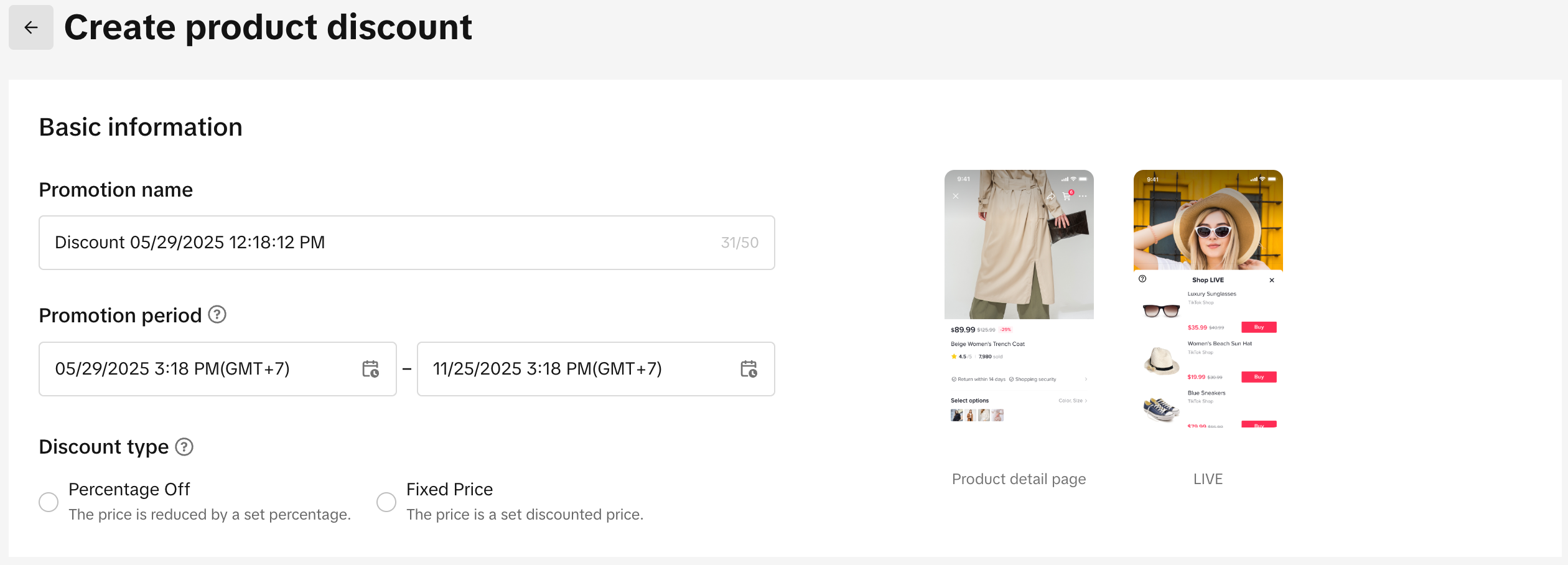
Creating a product discount on TikTok Seller Center (Source: TikTok Shop Academy) - For more details on setting up promotions on TikTok Shop, follow the guidelines listed in the TikTok Shop Academy.
Best practices
- Pick one source of truth for promotions. Prefer managing promotions either on ChannelEngine or directly on TikTok Shop, but not both at the same time for the same SKUs.
- Before expecting updates, verify the product is live on TikTok Shop.
- If you need to run a promotion directly on TikTok Shop, pause promotion changes on ChannelEngine for those SKUs until the TikTok Shop promotion ends, to prevent conflicts.
- Review minimum price settings and promotion rules on ChannelEngine to ensure the exported price matches your strategy.
Common errors
If your prices are not updating on TikTok Shop, follow these steps:
- Check product status on TikTok Shop; the product must be live for updates to apply.
- Confirm that there is no active TikTok Shop-native promotion locking the price. If locked, you may see the error: "Product price locked due to ongoing promotion."
- Verify that the product's SKU on ChannelEngine matches the SKU on TikTok Shop.
- Review promotions, price rules, and minimum price settings on ChannelEngine.
FAQs
Does ChannelEngine send a separate promotion or compare-at price to TikTok Shop?
No. ChannelEngine exports one active selling price per SKU via this flow. If you run a promotion on ChannelEngine, the reduced Original price is sent as the active price.
What happens if I have a promotion on ChannelEngine and a separate promotion on TikTok Shop at the same time?
TikTok Shop may lock the price for the TikTok Shop-native promotion and refuse ChannelEngine's price updates during that period. Choose a single source of truth for the same SKUs to avoid conflicts.
Comments
0 comments
Article is closed for comments.